

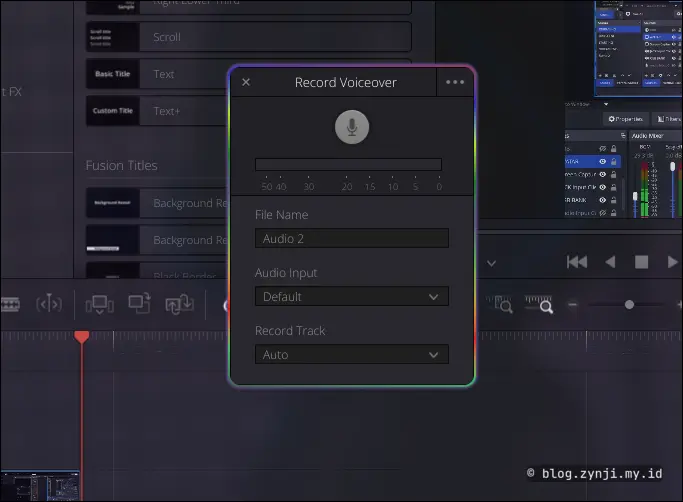
DaVinci Resolve on Linux is powerful for video editing, but sometimes things break. One common issue is when DaVinci Resolve Free refuses to detect microphone input for voiceover recording. In this guide, I’ll walk you through the troubleshooting steps and the exact solution that worked for me.
See video version from this article!
🛑 The Problem #
I use DaVinci Resolve Free on Linux, and everything else works perfectly:
- Video playback works.
- Audio playback works.
- Editing timeline runs smoothly.
But when I tried to record a voiceover, I hit a wall:
- The voice input meter doesn’t move.
- The audio track stays empty after recording.
- In Fairlight, the audio input list shows only ALSA devices, but none of them work.
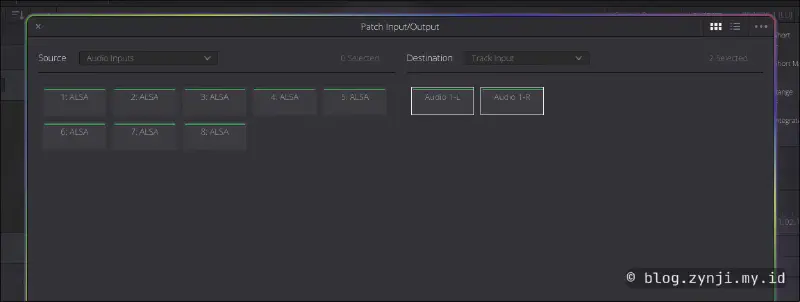
I checked using qpwgraph, and my microphone was connected to ALSA Resolve. So the mic was detected, but DaVinci Resolve didn’t pick up the sound.
🔍 First Attempted Fixes #
Before finding the solution, I tried several things:
- Switching between different ALSA inputs in Fairlight.
- Restarting DaVinci Resolve.
- Testing the microphone in other apps — it worked fine elsewhere.
I even checked the Arch Wiki for DaVinci Resolve. There’s a section about fixing “No audio during video preview,” but my playback was already working, so that didn’t apply directly.
Still, I kept digging.
🛠️ The Working Solution #
The issue comes from how DaVinci Resolve Free interacts with ALSA and PipeWire or PulseAudio. By default, Resolve doesn’t handle PipeWire/ALSA routing properly, which causes the mic input to fail.
Here’s what I did to fix it:
1️⃣ Install Required Audio Packages #
For most modern Linux systems, you’ll need one of these:
sudo pacman -S pipewire-alsa   # For PipeWire systems
# OR
sudo pacman -S pulseaudio-alsa # For PulseAudio systems
Make sure at least one of these is installed. Most PipeWire setups already have
pipewire-alsaby default.
2️⃣ Create or Edit asound.conf
#
Create a new ALSA configuration file:
sudo nano /etc/asound.conf
Add the following lines:
pcm.!default pulse
ctl.!default pulse
Save and exit (CTRL + O, then CTRL + X).
3️⃣ Restart DaVinci Resolve #
Close DaVinci Resolve, then reopen it.
Go to Fairlight > Audio Input, select your microphone, and try recording again.
- The audio input meter should now move.
- Recorded audio will appear correctly on the timeline.
🧩 Why This Works #
By default, DaVinci Resolve Free on Linux relies heavily on ALSA. But modern systems usually use PipeWire or PulseAudio for routing.
By forcing ALSA to send its default output and input through PulseAudio, we bypass Resolve’s limited handling of audio devices.
❓ Troubleshooting #
1. Microphone still not detected #
- Check if your microphone works in other apps like Audacity.
- Use
pavucontrolto see if PipeWire or PulseAudio detects it. - Make sure your mic is unmuted in the system settings.
2. No sound in playback after editing asound.conf
#
-
Double-check if
pipewire-alsaorpulseaudio-alsais installed. -
If you’re using PipeWire, restart the service:
systemctl --user restart pipewire pipewire-pulse
3. DaVinci Resolve still shows only ALSA devices #
This is normal. DaVinci Resolve Free doesn’t natively support PulseAudio or PipeWire. The asound.conf trick forces ALSA to use PulseAudio under the hood.
❔ FAQ #
Q: Does this work on all Linux distros? Yes, as long as your system uses PulseAudio or PipeWire.
Q: Is this a bug in DaVinci Resolve Free? Not exactly. The free version lacks proper PulseAudio support, so ALSA bridging is required.
Q: Do I need JACK or qpwgraph for this fix? No. You don’t need JACK unless you’re using advanced routing. The fix works without JACK.